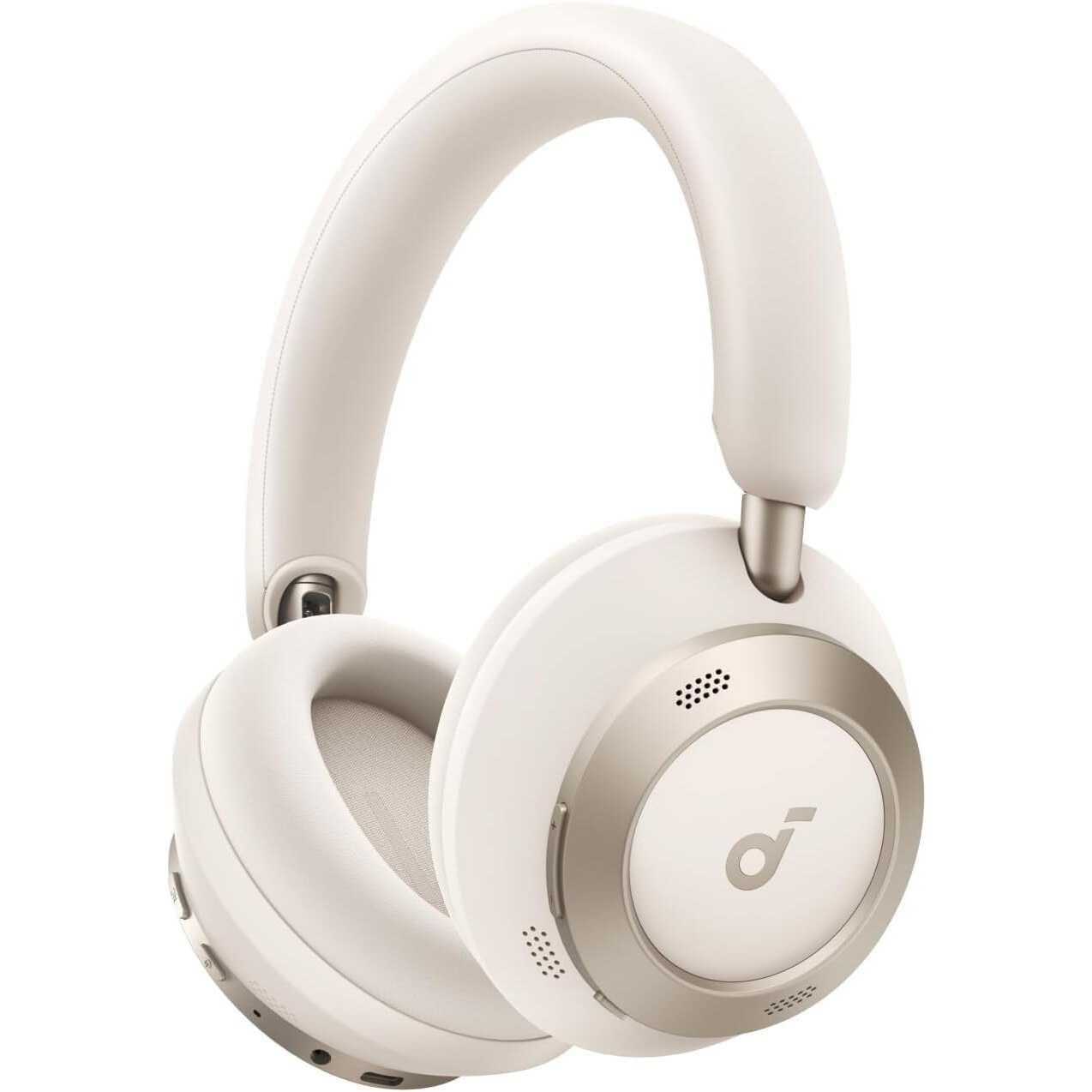
Anker Soundcore Space One Pro Wireless Over-Ear Headphones, Adaptive Active Noise Canceling, Hi-Res, 6 Microphones, Bluetooth 5.3, White
 (100 in stock)
799.99 RON
Anker Soundcore Space One Pro Wireless Over-Ear Headphones, Adaptive Active Noise Cancelling, Hi-Res, 6 Microphones, Bluetooth 5.3, White Foldable Design Soundcore's FlexiCurve structure reduces the size by 50%. The compact and foldable design of the Space One Pro noise-cancelling headphones allows you to pack more. Exclusive 4-stage noise-cancelling system Enhanced and improved, the Soundcore Space One Pro noise-cancelling headphones target and cancel a wider range of on-the-go noise in real time, adapting to your dynamic movements. Rich, lossless listening experience The Space One Pro's advanced drivers feature triple composite diaphragms for perfect audio balance and LDAC for high-resolution audio. Indulge in high-fidelity, undistorted sound with less than 3% Total Harmonic Distortion. 60 Hours of Non-Stop Playtime with Ultra-Fast ChargingEnjoy sound that lasts all day long with ultra-fast charging for 8 hours of playtime in just 5 minutes. Space One Pro has an impressive 40-hour battery life with ANC on and 60 hours with ANC off. Designed for all-day comfortIdeal for long-haul flights, the Space One Pro's pressure-relieving headband and foam earcups make comfort a priority, even during long listening sessions. What's in the box- Carrying case for storage × 1- Space One Pro noise-cancelling headphones × 1- 3.94 ft AUX cable × 1- 0.98 m USB-C charging cable × 1 FAQHow to reset Space One Pro?1. Turn on the headphones. 2. Press and hold both the power button and the “+” button simultaneously for 5 seconds until the LED indicator flashes red. Then, the indicator will flash white and finally blue, indicating that the headphones have been successfully reset. Multipoint Connection How do I activate the multipoint connection? 1. After connecting Space One Pro to a device, you can activate the multipoint connection by pressing the power button twice and then following the standard Bluetooth connection steps to connect a second device. 2. The multipoint connection is automatically activated. If you want to deactivate it, connect the Space One Pro headphones to the soundcore app, select Space One Pro on the “Device List” and deactivate the multipoint connection manually. Two types of multipoint connection What are the two types of multipoint connection? Type 1 (for Space One): With both a smartphone and a computer connected to the headphones, the headphones will play the sound from whichever device starts playing first, without letting the second device join. For example, if your computer starts playing music first, the headphones will continue to play from your computer, even if your smartphone starts playing audio later. Type 2 (for Space One Pro): With both your smartphone and computer connected to the headphones, the headphones will play audio from the device that starts playing last. For example, if your computer starts playing music first and then your smartphone starts playing audio, the headphones will switch to your smartphone and mute the computer audio. Note: Due to compatibility issues, notification sounds may be mistaken for sound and may override playback. Adaptive Noise Cancellation What is Adaptive Noise Cancellation? Real-time monitoring of environmental changes and audio leaks to adjust noise cancellation capabilities. With Adaptive Noise Cancellation, you can experience the optimal noise reduction effect and maximum silence. Please note that this feature is disabled by default and can be enabled via the soundcore app. Easy Chat What is Easy Chat? This feature is disabled by default. To enable it, enable “Speak to Enable” in Easy Chat in the soundcore app. It will be automatically enabled when it detects that you are speaking. 1. When you speak, the music volume automatically drops to one bar. 2. The activation time can be set to 5s, 10s or 15s in the app, and the default value is 5s. 3. Noises such as sudden, sharp sounds or coughs can lead to accidental activation of Easy Chat. 4. Noise can prevent it from activating and help you speak. Dolby Sound Effect What is Dolby Sound Effect? This feature is disabled by default and can be enabled via the Soundcore app. 1. With Dolby Sound Effect enabled, stereo and spatial audio effects are enhanced, but the sound quality may be slightly compromised. 2. It is ideal for watching concerts and movies online. The effect varies with different music genres, and some songs may not have any effect at all. Not recommended for listening to podcasts. 3. Dolby sound effect is mutually exclusive with LDAC technology. 4. If your phone has a built-in Dolby function, it is recommended to use the Dolby effect of your phone or headphones for the optimal sound experience. Sidetone Mode What is Sidetone Mode? This feature is disabled by default and can be enabled via the Soundcore app. It allows you to hear your own voice during a call. It has a similar effect to Transparency mode, but not as strong.
Quantity
Related Products